 3ngine documentation site
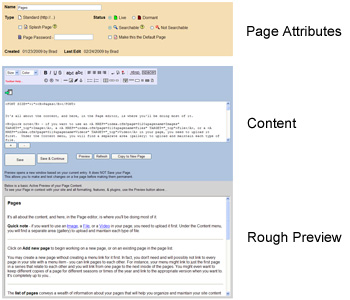 The page editor consists of 3 main sections. The page attributes, the content itself, and an interactive rough preview.
Every page must have a name. This name will be displayed in the title of the browser when a page is viewed, so enter a name that is appropriate, brief, and descriptive.
Most of your pages will be plain, "Standard" pages. If the page you are creating will need to be SSL Secure, be sure to make this choice at the time of creation. This effects the way your page is linked to by the menus and in page inter-links, so once you've put a page into use, you cannot change this.
A Splash Page is a standalone page that does not utilize your site template (Banner, Menus, etc. are suppressed), allowing you the freedom to create a Splash / Intro or interstitial page. Take care when creating a Splash Page, making sure that you maintain a link back into a regular page of your site so that your visitors do not browse into a dead-end. Note - some earlier developed site templates do not recognize splash pages. If your site banner and menus still appear in your splash page, please let us know and we'll update your template.
Passwords may be assigned to pages to limit their access. If you need to cordon off a page or area of your site as a private area, enter a password here and distribute that password to those who should have access. You may change / update the password as needed. Visitors to your site will be informed that the page is private when they attempt to view it and be prompted to enter the password. Once they have done this, the password will be cookied so they have freedom of movement from regular pages and back to the private page without the need to re-enter it unless they browse to a page with a different password.
Pages can be live or dormant. Pages that are dormant cannot be viewed in your site. A message stating that the page is not currently available will be displayed when browsed to it. Depending on your general site settings, menu links to dormant pages may be suppressed (not shown) when its linked page is dormant. Pages will automatically go dormant (if you have chosen so) when they have been changed / updated by site editors, giving you an opportunity to review and approve the content before it goes live. In this case, an admin or webmaster access is required to make the page live again.
By default, all live pages (whether they are linked to or not) are returned in a site search (if your site utilizes a search function. If it does not and you want one, just let us know). If you do not want for a page to be included in search results, you may set its' status to Not Searchable.
Your Default Page is the page that is initially displayed when someone visits your site. This is set independently of any page you might have linked to as a home page in your menus, but is probably the same one...
A First Impression Page is a special kind of default page. It will be shown to your visitors on the first day that they visit your site. When they return to your site later, they will see your normal Default Page. Use it to present a special offer or to convey imformation that might be important to a first time visitor to your site. See your site's General Settings area to enable this functionality.
The "Pin to Backend Welcome Page" option allows you create a link to the page on your Welcome Page in the backend. Use this for your own convenience to tag any page that view or edit often to the Welcome Page for immediate access to it.
Check the "This is my page" box if you need or wish to claim ownership of a page. Page ownership helps to maintain integrity of your page(s), preventing unauthorized changes or accidental deletion. Editors may not make changes to pages that are owned by other users. Admins and Webmasters may make changes to pages regardless of ownership, but are reminded that the page(s) are owned by another user. Pages cannot be deleted while they are owned by a user - edit the page and un-check the box to release ownership prior to deletion. In addition to page ownership, Webmasters may also Lock critical pages.
The Note box is provided for making organizational note(s) to yourself or other editors. Use it to denote unfinished pages, things that need to be done or fixed, whatever. The note that you enter here will appear in the Page Listing so that you may find and act on them easily.
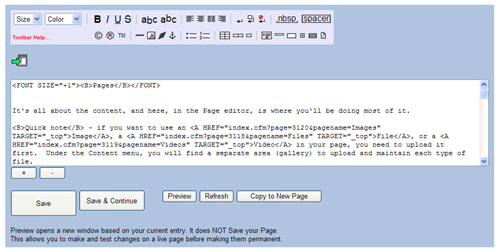 In the content area of the page editor you will find a toolbar that will assist you in inserting common html tags for formatting your text and inserting objects.
Beneath the toolbar, insertion buttons will appear for images, videos, files, and other pages. Clicking on these will expand a list of each, from which you can choose one. Recently uploaded items will be highlighted in green so that you can find them easily.
Under the entry area, the [ + ] and [ - ] buttons allow you to increase or decrease the entry area size.
Click Save to finish working on a page and return the page list. Click on Save & Continue to update the page and keep working on it.
Preview will launch a new window (or tab depending on your browser) and show you what your page looks like in context with the rest of the site. Preview does NOT save your page.
Use the Refresh button if necessary to refresh the editor page to update the lists of insertable items (images, etc.) that have been uploaded by other users while you have been working on your page.
Copy to New Page will create a new page from the one you have open. Be sure to save any changes you have made before doing this as it will take you directly to the new page without saving the page you have open.
Type directly into the content entry text box just as you would any word processor.
Highlight text that you wish to apply special formatting to (bold, underline, etc.) and click on the button in the toolbar for that action. Mouse over the toolbar to view pop-up text describing what each one does.
To insert special characters, images, and other elements - with the cursor at the point in your text that you want to make the insertion, click on those buttons...
Some of the insertions you make (links to other websites and remotely hosted images for example) require information more from you. You will be prompted where needed, and what you enter will be included in the tags for you.
You will notice very quickly that you are entering and editing your page content as raw html code. It may seem awkward at first, but it's not hard, and we've done it this way for several reasons. First, by not placing a WYSIWYG editor between you and your resultant pages, there's literally "one less thing to break". We're efficient and pragmatic like that... Second, "you are also not limited by a WYSIWYG". The toolbar includes actions for the most common of your editing tasks, but you have the flexibility of using ANY formating or object you need or want to. You can add CSS and even javascript to your pages.
Check out these links for information about html editing for Beginners and for Advanced users.
Continue on to Tips & Tricks...